
The firm owner does this, once. You create your LedgerSync account while you set up your AI. It takes a few minutes.
Does your firm already use the LedgerSync app? Do not create a new account and do not pay. Go to Firm already uses LedgerSync instead.
Prices are on ledgersync.com/pricing.
1

Add LedgerSync to your AI

Follow Set up in Claude or Set up in ChatGPT. When the LedgerSync sign-in page opens, do the next step.
2

Type your work email

Type your work email. Click Next.
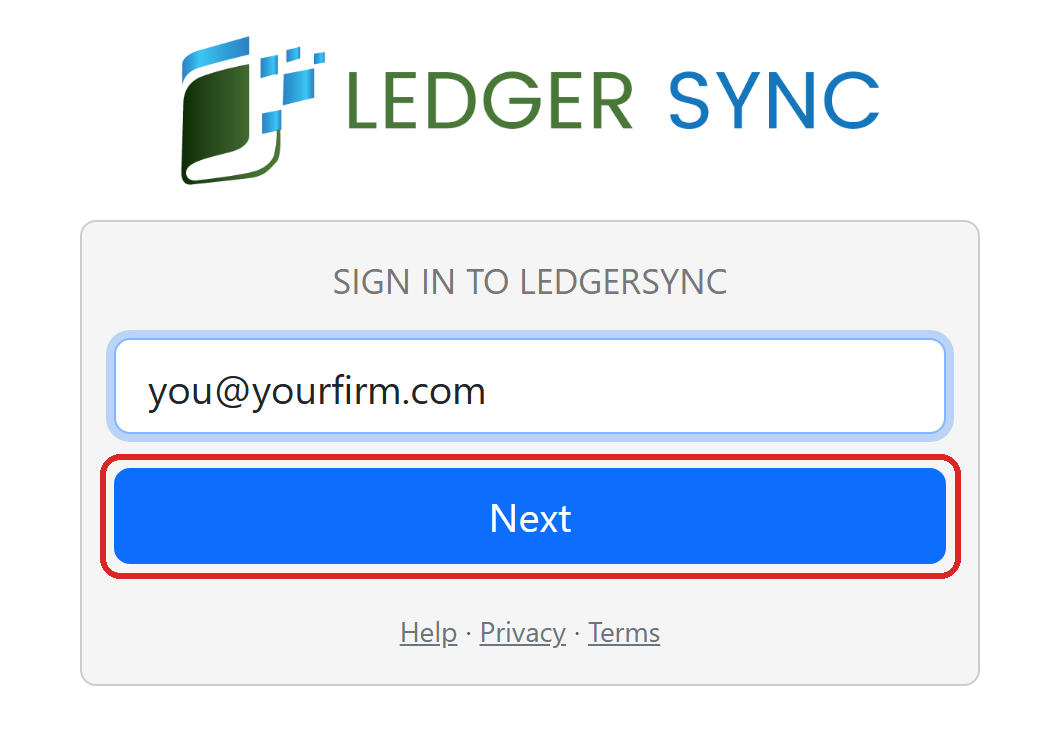
The Sign in to LedgerSync page with the Next button marked
Use your work email, not a free email like Gmail. Do not use an email with a plus sign (+).
3

Click Create account

The page says Create your LedgerSync account. Click Create account.
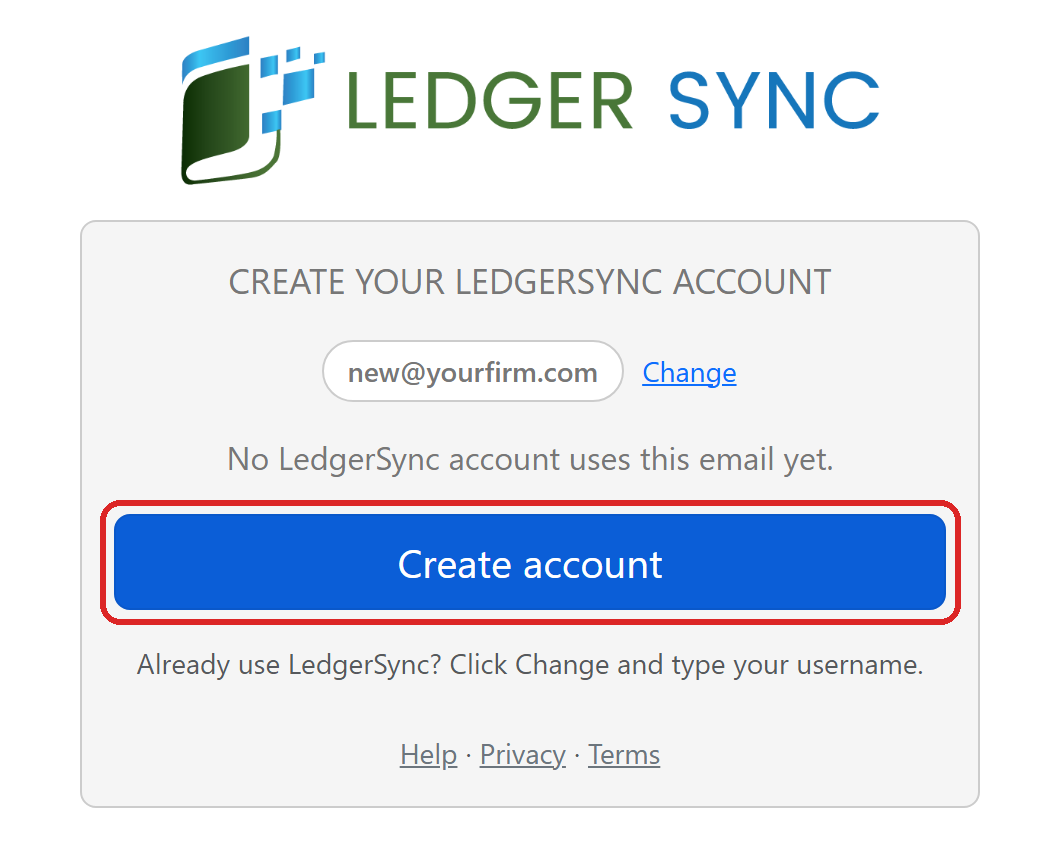
The Create your LedgerSync account page with the Create account button marked
4

Fill in the form

Your email is already there. Type your name, your phones and your firm’s name. Type a password twice: 10 or more characters, with a capital letter, a small letter, a number and a symbol. Click NEXT.
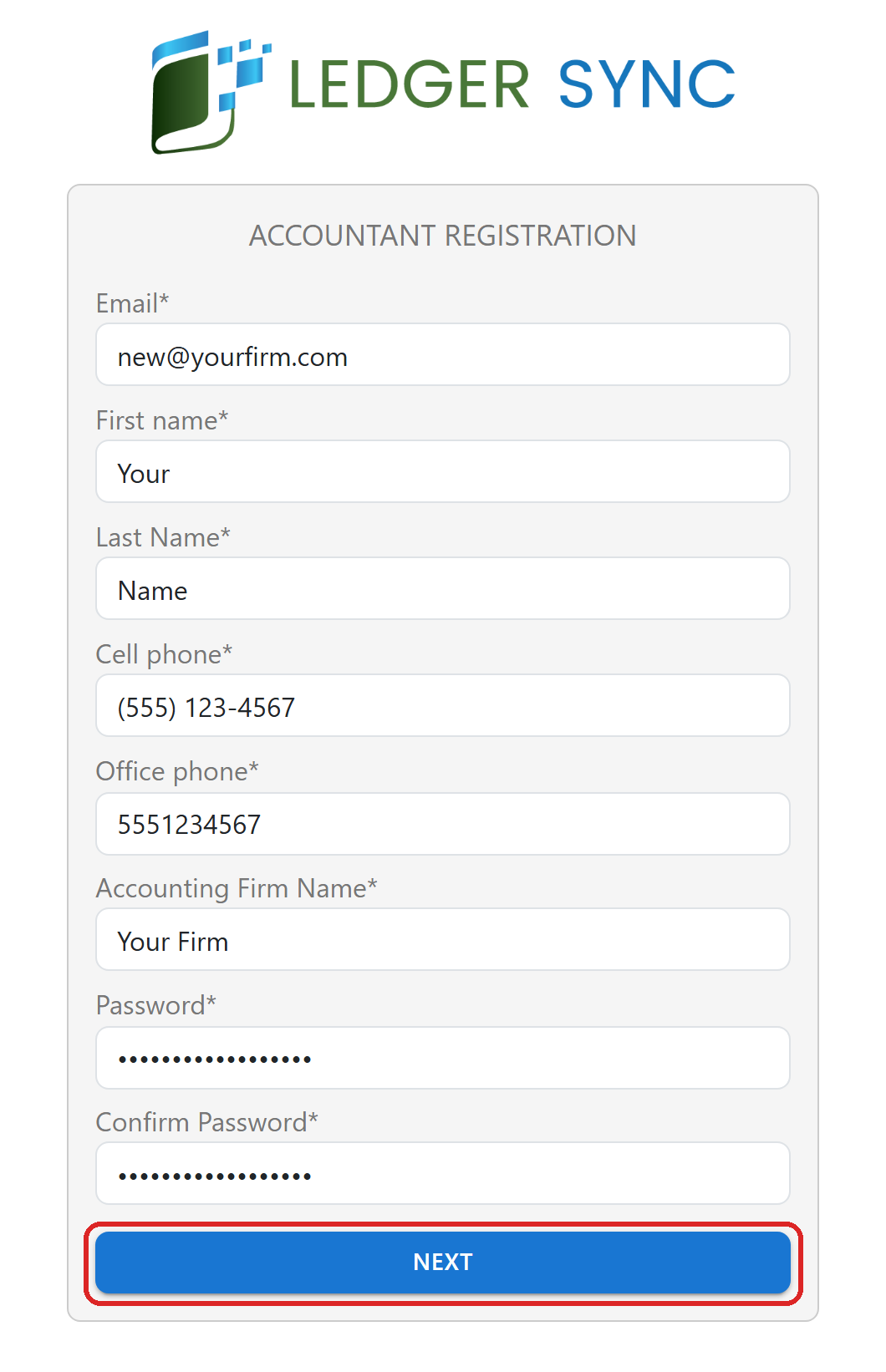
The Accountant registration form filled in, with the NEXT button marked
5

Add your card

Check your order. Type your card details. Click Subscribe.This page is from Zoho, our billing partner.
6

Wait one moment

The page says Creating your account. It may then say Getting your account ready. Do not close it. It moves on by itself. If it says Wait 2 minutes, then click Try again, do that.
7

Click Allow

Click Allow. Then your AI asks to access your account: click Allow access.
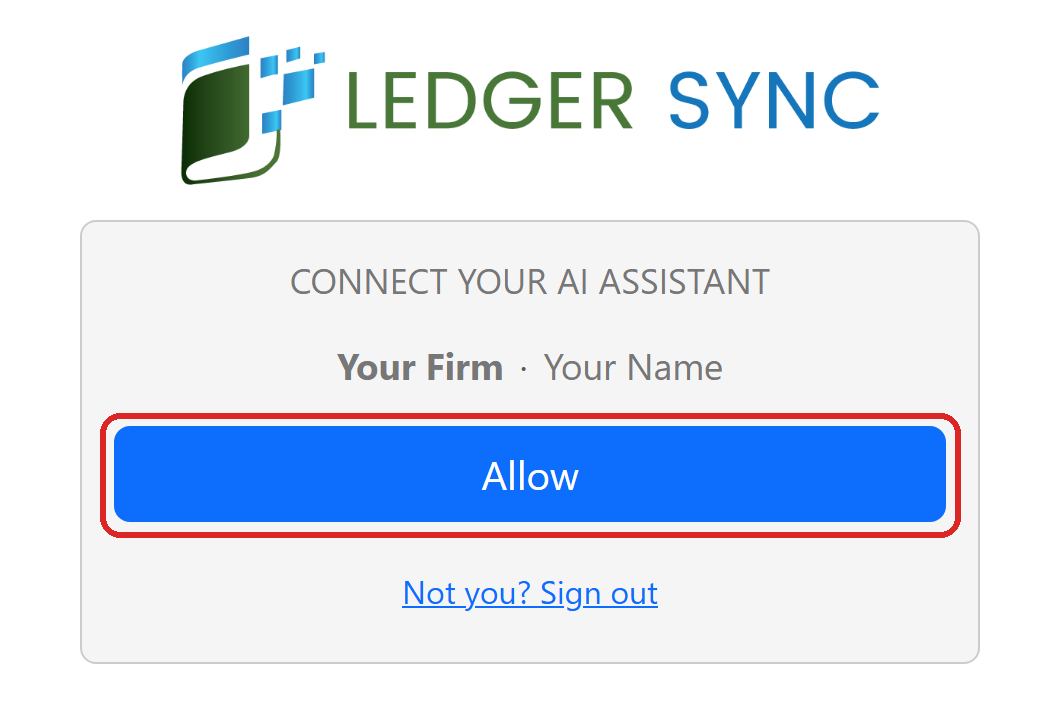
The Connect your AI assistant page with the Allow button marked

What happens next

We check every new firm by hand. Until then, your AI says: We’re reviewing your new firm. You can add clients now. Bank connections open after the review. You can add your clients now. Bank connections open after the review. Stuck? Email support@ledgersync.com with the step and what the screen says. Never send passwords or card numbers.