
ChatGPT Business, Enterprise or Edu? Only your workspace admin can add LedgerSync. Ask them to add it
for your workspace. Then open Settings, then Plugins, click LedgerSync and click Connect,
and go to step 5.
1
Turn on Developer mode
Open chatgpt.com/settings/security. Or click Settings, then
Security and login.Turn on Developer mode. Without it, Create MCP App does not appear in step 3.ChatGPT may show a risk warning. Turn it on anyway: LedgerSync needs it.
2
Click Plugins, then Add
Open chatgpt.com/plugins. Or click Plugins on the left. Then click
Add.
3
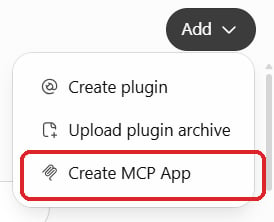
Click Create MCP App
4
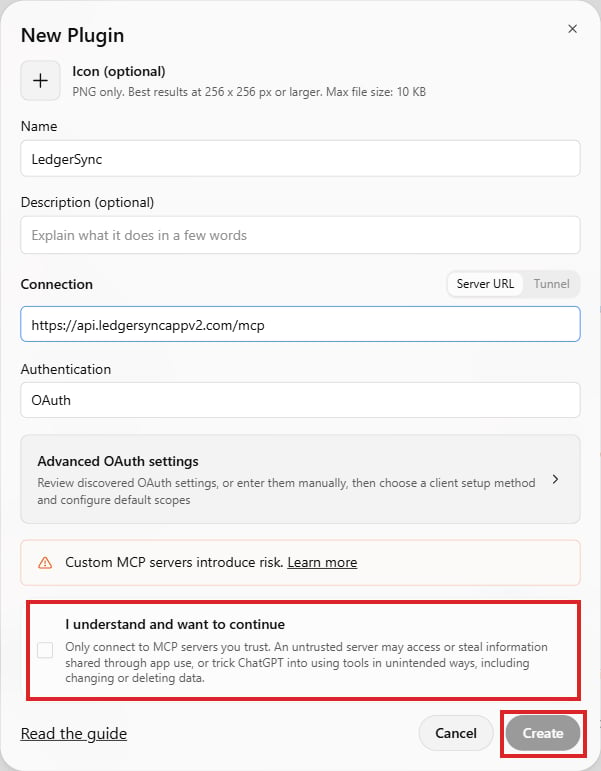
Fill in the New Plugin form
- In Name, type LedgerSync.
- Keep Server URL. Click the box below it, then press Ctrl+V (Windows) or Command+V (Mac) to paste the address.
- Keep OAuth under Authentication.
- Tick the box I understand and want to continue.
- Click Create.
5
Sign in to LedgerSync
The LedgerSync sign-in page opens. Type your email or your LedgerSync username. Click Next.
Already signed in to LedgerSync in this browser? You go straight to the Allow page.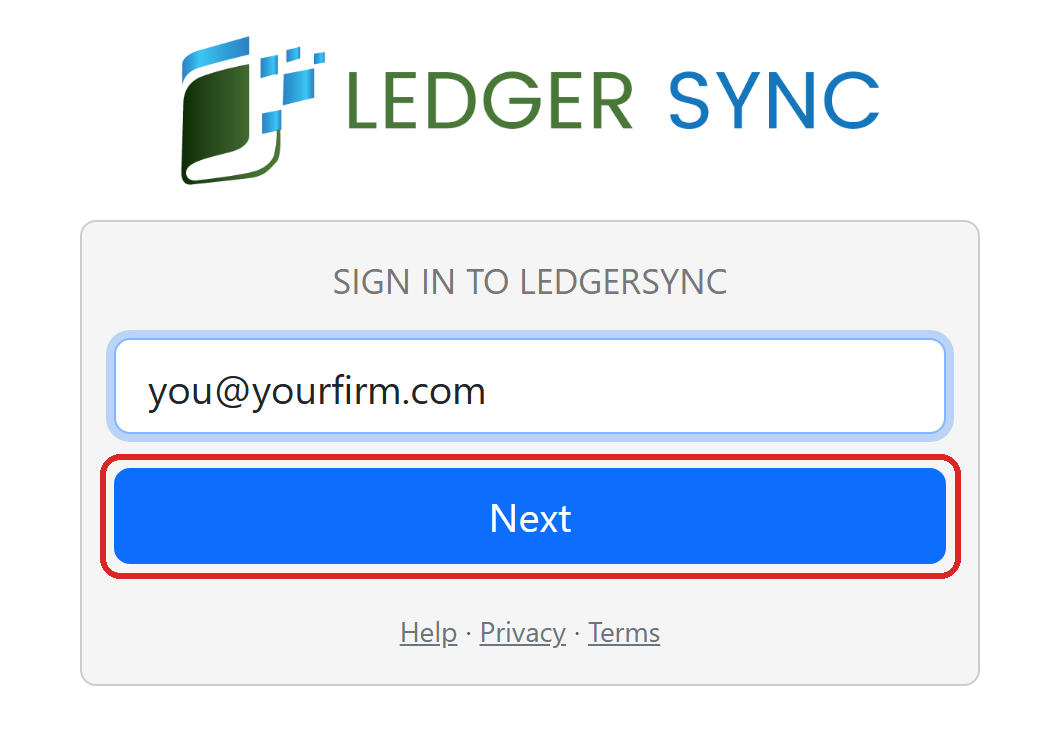
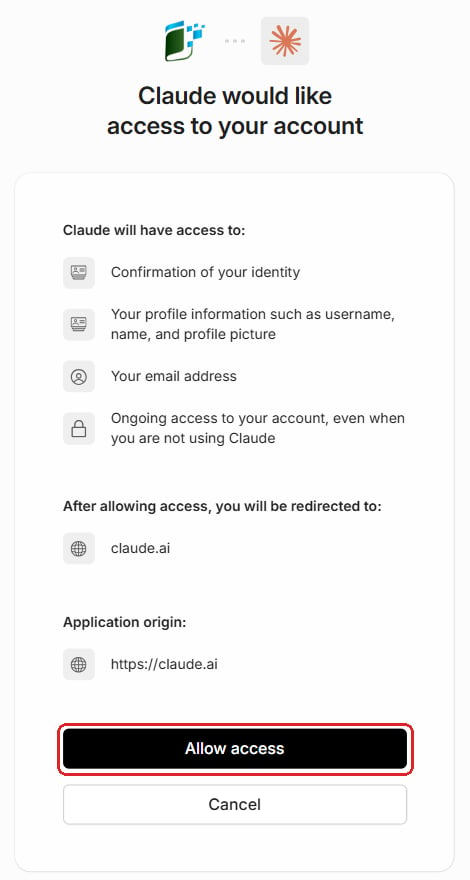
- Your firm uses LedgerSync: type your LedgerSync password. Click Sign in. You use two-step sign-in? Type your code and click Verify. See Create your LedgerSync account instead? Do not click it. Click Change and type your LedgerSync username.
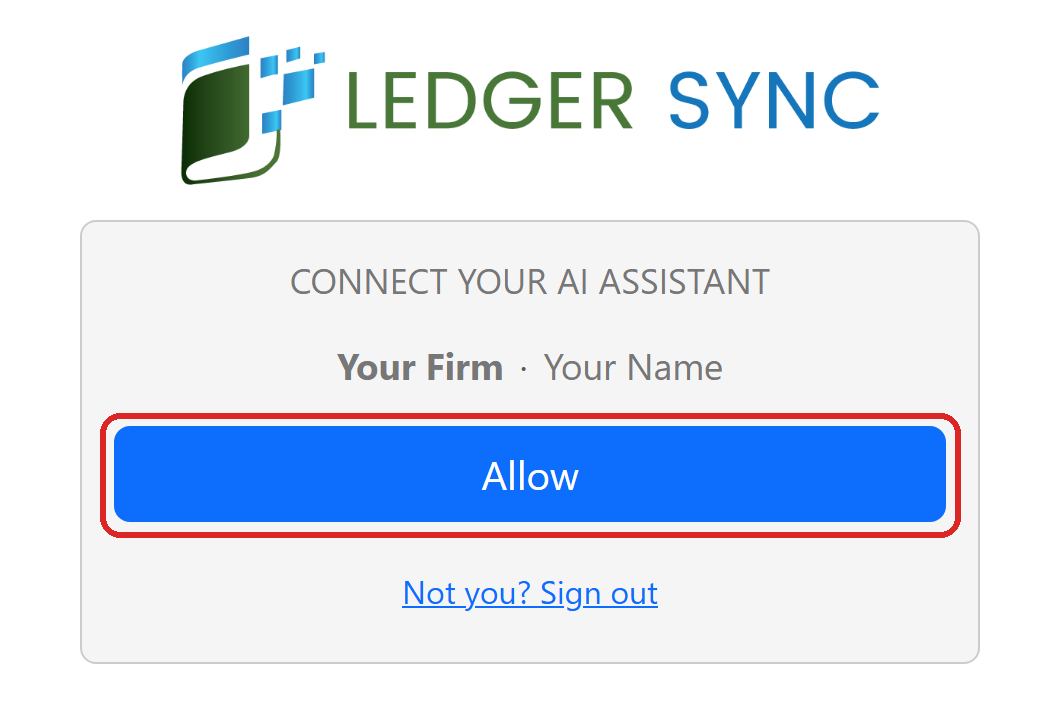
- New to LedgerSync: the page says Create your LedgerSync account. Click Create account and follow New to LedgerSync. It ends on the Allow page below.
- Approved developer accounts: type your developer portal email. LedgerSync sends you to the developer portal sign-in. An application still waiting for its first approval cannot connect yet.
6
Test it in a new chat
Click New chat. Type @ and pick LedgerSync. Then ask:ChatGPT looks things up without asking, and asks before it changes anything.
Now ask
What the AI answers to the test question:- It says LedgerSync is ready: ask anything below.
- It says we’re reviewing your new firm: add your clients now. Bank connections open after the review.
- Anything else: see Troubleshooting.
New account? Add your first client
A new LedgerSync account has no clients yet. Add your first one. Acme is an example: use your client’s name.1
Add a client and get a bank link
Ask: “Add my client Acme and give me a link to connect their bank.”
2
Open the link and connect the bank
Open the link. Pick your client’s bank and sign in with their bank login. This happens on a LedgerSync
page, never in the chat.Don’t have their bank login? Send the link to your client by email or text, and they do it. The link
works for 3 days.
3
Ask about their bank
When the bank is connected, ask: “Show Acme’s bank balances.”
More things to ask
Is a bank supported?
“Does LedgerSync work with First National Bank?”
Find a client
“Find my client Acme.”
Balances
“Show Acme’s bank balances.”
Transactions
“Show last month’s transactions for Acme’s checking account.”
Statements
“Get Acme’s September bank statement.”
Problems
“Which of my clients’ banks are not working?”
Connect a bank
“Send Acme a link to connect their bank.”
Nobody types a bank password in the chat. When a bank needs a password, the AI gives you a link to a
LedgerSync page. The password goes there.