> ## Documentation Index
> Fetch the complete documentation index at: https://docs.ledgersyncappv2.com/llms.txt
> Use this file to discover all available pages before exploring further.
# Use LedgerSync in Claude and ChatGPT
> Ask Claude or ChatGPT about your clients' banks, in plain words.
Chat with Claude or ChatGPT about your clients' bank accounts. It finds the answer in LedgerSync.
```mermaid theme={null}
graph LR
A[1. Copy the
address] --> B[2. Add it to
Claude or ChatGPT]
B --> C[3. Sign in to
LedgerSync]
C --> D[4. Ask a
question]
```
## 1. Copy this address
Click the copy icon on the right of the box.
```text theme={null}
https://api.ledgersyncappv2.com/mcp
```
## 2. Add it to your AI
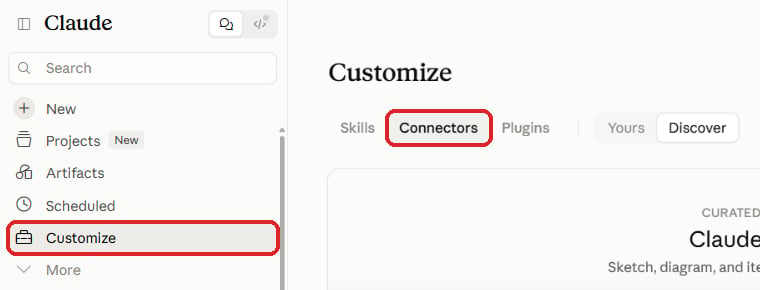
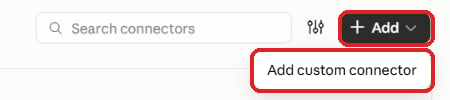
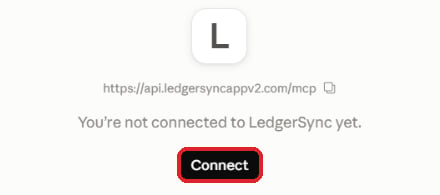
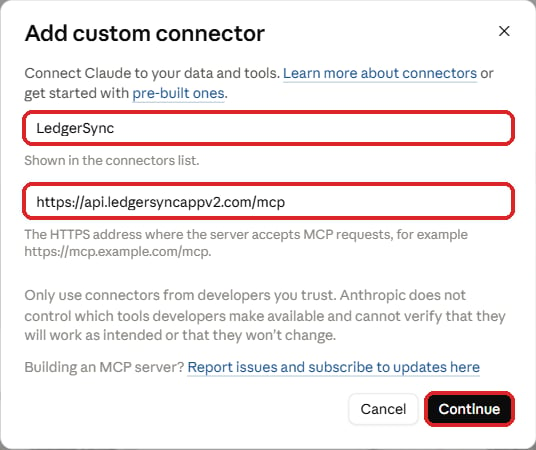 Do not change anything on this screen.
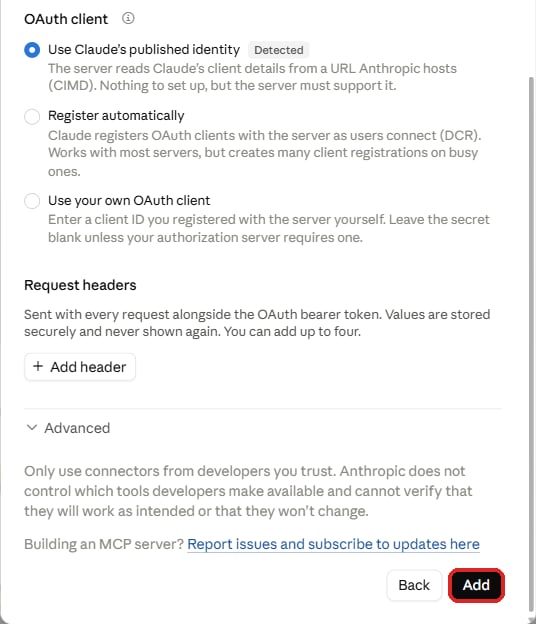
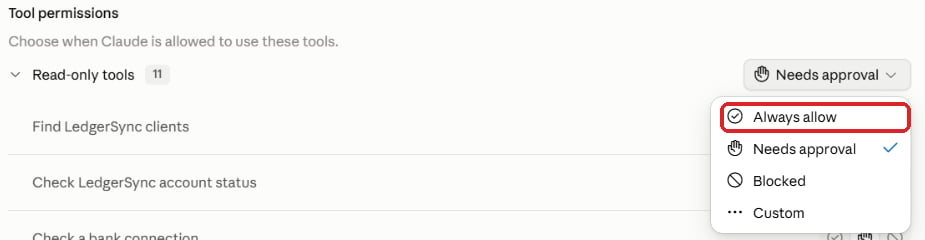
 Next to **Read-only tools**, pick **Always allow**. Claude still asks before it changes anything.

 If it asks how to sign in, pick **OAuth**.
## 3. Sign in to LedgerSync
Use the same email you use for LedgerSync.
If it asks how to sign in, pick **OAuth**.
## 3. Sign in to LedgerSync
Use the same email you use for LedgerSync.
 Then click **Allow access**. You only see this the first time.
 ## 4. Ask
Open a **new chat** and ask, for example:
"Find my client Acme."
"Show Acme's bank balances."
"Show last month's transactions for Acme's checking account."
"Get Acme's September bank statement."
"Which of my clients' banks are not working?"
"Send Acme a link to connect their bank."
**Nobody types a bank password in the chat.** When a bank needs a password, the AI gives you a link to a
LedgerSync page. The password goes there.
Before the AI changes something, it asks you first. Say yes if it looks right.
## Something wrong?
| The AI says | Do this |
| - | - |
| You have no LedgerSync account, or it is under review | Sign up at [portal.ledgersyncappv2.com](https://portal.ledgersyncappv2.com), or wait for our email. |
| Finish the payment step | Finish it in the LedgerSync portal. |
| This app was disconnected | Remove LedgerSync from the AI and add it again. |
| Wait, or try again later | Wait a few minutes. Some limits reset the next day. |
| It cannot find the client | Ask "Find my client ..." first, then ask again. |
| It does not know LedgerSync | Start a new chat. |
**Already a LedgerSync customer?** Do not sign up again and do not pay. Email
[support@ledgersync.com](mailto:support@ledgersync.com).
Still stuck? Email [support@ledgersync.com](mailto:support@ledgersync.com).
## Turn it off
In the LedgerSync portal, open **Connected apps** and click **Disconnect**. Or remove LedgerSync from the AI.
## For developers
Add this address as a second connector, then connect **FinBank**, **MX Bank** or **Ledgersync Bank** with
the test sign-ins in [Testing in sandbox](/guides/testing).
```text theme={null}
https://api-sandbox.ledgersyncappv2.com/mcp
```
* A LedgerSync developer account approved for that environment. Live also needs the payment step.
* Existing LedgerSync app customers are linked by support, not charged again.
* Only the account owner can connect. Teammates should ask the owner.
* ChatGPT needs a paid plan (Plus or higher) and the web version. A Business, Enterprise or Education
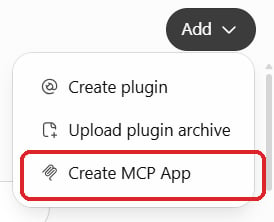
workspace can turn custom apps off; ask your workspace admin if **Create MCP App** is missing.
* On Claude Team and Enterprise, an Owner first adds it under **Organization settings > Connectors**. The
Claude Free plan allows one custom connector. Once added, it also works in Claude Desktop, the Claude
mobile apps, and Claude Code signed in with the same account.
* AI apps other than Claude and ChatGPT are blocked. Ask support if you need one.
| Tool | What it does | Changes something |
| - | - | - |
| `ledgersync_get_account_status` | Whether the connection is ready, sandbox or live, full or read-only, and how many of your account's refreshes are left today | No |
| `ledgersync_find_clients` | Finds clients by name or email | No |
| `ledgersync_create_client` | Adds a client (it checks for an existing one with the same name or email first) | Yes |
| `ledgersync_create_connect_link` | Creates a secure page where the account holder picks their bank and signs in | Yes |
| `ledgersync_search_institutions` | Checks whether a bank is supported, and whether it gives transactions and statements | No |
| `ledgersync_list_connections` | Lists one client's bank connections, their status and when each last refreshed | No |
| `ledgersync_get_connection` | Checks one bank connection | No |
| `ledgersync_list_connections_needing_attention` | Lists the connections that are not working, across all your clients, the ones that need the account holder first | No |
| `ledgersync_list_accounts` | Lists a client's bank accounts with balances | No |
| `ledgersync_list_transactions` | Lists an account's transactions (the last 30 days unless you ask for other dates) | No |
| `ledgersync_list_statements` | Lists an account's statements | No |
| `ledgersync_get_statement_download_link` | Creates a link to download one statement PDF | No |
| `ledgersync_refresh_connection` | Asks the bank for the latest balances and transactions | Yes |
| `ledgersync_get_operation_status` | Reports whether a refresh has finished | No |
| `ledgersync_get_fix_link` | Creates a secure page where the account holder signs in to their bank again to fix a broken connection | Yes |
* Bank sign-ins only happen on LedgerSync pages. Connect links expire after 72 hours.
* Statement download links expire after 10 minutes and work once; if a download fails, ask for a new link.
* The connector cannot see or change API keys, webhooks or account settings.
* Disconnecting in the portal's **Connected apps** page cuts the app off at once; adding it again signs in
fresh.
* LedgerSync refreshes every working connection about once a day. A refresh you ask for takes a few
minutes; see [Keeping data fresh](/guides/data-freshness).
* A connection refreshed in the last 30 minutes is skipped unless you ask for a new pull anyway.
* Each connected AI app can start 20 refreshes a day on sandbox and 50 on live. They also count against
your account's daily refresh budget, shared with API keys: 100 on sandbox, 500 on live.
* Per connected AI app: 50 new clients a day, 30 connect links an hour, and 120 tool calls a minute on
sandbox (60 on live).
* Long lists of connections, accounts, transactions and statements come back in pages.
Every error carries a `code`, the same as the API's (see [Errors](/guides/errors)). Access and rate-limit
errors also carry a `next_step` sentence the AI reads out.
| Code | What it means | What to do |
| - | - | - |
| `access_not_active` | This sign-in has no active LedgerSync developer account yet: it never applied, or its first application is still under review. | Apply at [portal.ledgersyncappv2.com](https://portal.ledgersyncappv2.com), or wait for the review. Existing LedgerSync customers: email support, do not apply or pay. |
| `access_request_not_approved` | Your application for this environment is still being reviewed, or needs more information. | Check its status in the portal. |
| `billing_not_configured` | Live access is approved, but the payment step was not completed. | Complete the payment step in the portal. Existing LedgerSync customers: email support instead. |
| `connector_app_pending_approval` | This AI app is not approved for LedgerSync. | Email support. |
| `connector_access_revoked` | This AI app was disconnected from your LedgerSync account. | Remove the connector from the AI app and add it again. |
| `insufficient_scope` | This connection is read-only, or lacks permission for what you asked. | Ask for something the connection may do, or email support. |
| `rate_limit_exceeded` | A limit was reached. | Try again when the AI says you can, or tomorrow for a daily limit. |
| `not_found` | No client, connection, account or statement matches, or it belongs to another account. | Ask the AI to find the client first, then try again. |
## 4. Ask
Open a **new chat** and ask, for example:
"Find my client Acme."
"Show Acme's bank balances."
"Show last month's transactions for Acme's checking account."
"Get Acme's September bank statement."
"Which of my clients' banks are not working?"
"Send Acme a link to connect their bank."
**Nobody types a bank password in the chat.** When a bank needs a password, the AI gives you a link to a
LedgerSync page. The password goes there.
Before the AI changes something, it asks you first. Say yes if it looks right.
## Something wrong?
| The AI says | Do this |
| - | - |
| You have no LedgerSync account, or it is under review | Sign up at [portal.ledgersyncappv2.com](https://portal.ledgersyncappv2.com), or wait for our email. |
| Finish the payment step | Finish it in the LedgerSync portal. |
| This app was disconnected | Remove LedgerSync from the AI and add it again. |
| Wait, or try again later | Wait a few minutes. Some limits reset the next day. |
| It cannot find the client | Ask "Find my client ..." first, then ask again. |
| It does not know LedgerSync | Start a new chat. |
**Already a LedgerSync customer?** Do not sign up again and do not pay. Email
[support@ledgersync.com](mailto:support@ledgersync.com).
Still stuck? Email [support@ledgersync.com](mailto:support@ledgersync.com).
## Turn it off
In the LedgerSync portal, open **Connected apps** and click **Disconnect**. Or remove LedgerSync from the AI.
## For developers
Add this address as a second connector, then connect **FinBank**, **MX Bank** or **Ledgersync Bank** with
the test sign-ins in [Testing in sandbox](/guides/testing).
```text theme={null}
https://api-sandbox.ledgersyncappv2.com/mcp
```
* A LedgerSync developer account approved for that environment. Live also needs the payment step.
* Existing LedgerSync app customers are linked by support, not charged again.
* Only the account owner can connect. Teammates should ask the owner.
* ChatGPT needs a paid plan (Plus or higher) and the web version. A Business, Enterprise or Education
workspace can turn custom apps off; ask your workspace admin if **Create MCP App** is missing.
* On Claude Team and Enterprise, an Owner first adds it under **Organization settings > Connectors**. The
Claude Free plan allows one custom connector. Once added, it also works in Claude Desktop, the Claude
mobile apps, and Claude Code signed in with the same account.
* AI apps other than Claude and ChatGPT are blocked. Ask support if you need one.
| Tool | What it does | Changes something |
| - | - | - |
| `ledgersync_get_account_status` | Whether the connection is ready, sandbox or live, full or read-only, and how many of your account's refreshes are left today | No |
| `ledgersync_find_clients` | Finds clients by name or email | No |
| `ledgersync_create_client` | Adds a client (it checks for an existing one with the same name or email first) | Yes |
| `ledgersync_create_connect_link` | Creates a secure page where the account holder picks their bank and signs in | Yes |
| `ledgersync_search_institutions` | Checks whether a bank is supported, and whether it gives transactions and statements | No |
| `ledgersync_list_connections` | Lists one client's bank connections, their status and when each last refreshed | No |
| `ledgersync_get_connection` | Checks one bank connection | No |
| `ledgersync_list_connections_needing_attention` | Lists the connections that are not working, across all your clients, the ones that need the account holder first | No |
| `ledgersync_list_accounts` | Lists a client's bank accounts with balances | No |
| `ledgersync_list_transactions` | Lists an account's transactions (the last 30 days unless you ask for other dates) | No |
| `ledgersync_list_statements` | Lists an account's statements | No |
| `ledgersync_get_statement_download_link` | Creates a link to download one statement PDF | No |
| `ledgersync_refresh_connection` | Asks the bank for the latest balances and transactions | Yes |
| `ledgersync_get_operation_status` | Reports whether a refresh has finished | No |
| `ledgersync_get_fix_link` | Creates a secure page where the account holder signs in to their bank again to fix a broken connection | Yes |
* Bank sign-ins only happen on LedgerSync pages. Connect links expire after 72 hours.
* Statement download links expire after 10 minutes and work once; if a download fails, ask for a new link.
* The connector cannot see or change API keys, webhooks or account settings.
* Disconnecting in the portal's **Connected apps** page cuts the app off at once; adding it again signs in
fresh.
* LedgerSync refreshes every working connection about once a day. A refresh you ask for takes a few
minutes; see [Keeping data fresh](/guides/data-freshness).
* A connection refreshed in the last 30 minutes is skipped unless you ask for a new pull anyway.
* Each connected AI app can start 20 refreshes a day on sandbox and 50 on live. They also count against
your account's daily refresh budget, shared with API keys: 100 on sandbox, 500 on live.
* Per connected AI app: 50 new clients a day, 30 connect links an hour, and 120 tool calls a minute on
sandbox (60 on live).
* Long lists of connections, accounts, transactions and statements come back in pages.
Every error carries a `code`, the same as the API's (see [Errors](/guides/errors)). Access and rate-limit
errors also carry a `next_step` sentence the AI reads out.
| Code | What it means | What to do |
| - | - | - |
| `access_not_active` | This sign-in has no active LedgerSync developer account yet: it never applied, or its first application is still under review. | Apply at [portal.ledgersyncappv2.com](https://portal.ledgersyncappv2.com), or wait for the review. Existing LedgerSync customers: email support, do not apply or pay. |
| `access_request_not_approved` | Your application for this environment is still being reviewed, or needs more information. | Check its status in the portal. |
| `billing_not_configured` | Live access is approved, but the payment step was not completed. | Complete the payment step in the portal. Existing LedgerSync customers: email support instead. |
| `connector_app_pending_approval` | This AI app is not approved for LedgerSync. | Email support. |
| `connector_access_revoked` | This AI app was disconnected from your LedgerSync account. | Remove the connector from the AI app and add it again. |
| `insufficient_scope` | This connection is read-only, or lacks permission for what you asked. | Ask for something the connection may do, or email support. |
| `rate_limit_exceeded` | A limit was reached. | Try again when the AI says you can, or tomorrow for a daily limit. |
| `not_found` | No client, connection, account or statement matches, or it belongs to another account. | Ask the AI to find the client first, then try again. |