> ## Documentation Index
> Fetch the complete documentation index at: https://docs.ledgersyncappv2.com/llms.txt
> Use this file to discover all available pages before exploring further.
# Your firm already uses LedgerSync
> Connect your firm's LedgerSync account to Claude or ChatGPT with your normal login. No new plan.
You do not need a new plan and you are not charged again. Your LedgerSync plan covers it. New clients
you add through the AI count on your plan, just like clients you add in the app.
**Do not create a new account and do not pay.** You sign in with the same username and password you use in
the LedgerSync app.
For now, only the firm owner can connect LedgerSync. Access for teammates is coming.
## How it works
Follow [Set up in Claude](/ai/setup-claude) or [Set up in ChatGPT](/ai/setup-chatgpt).
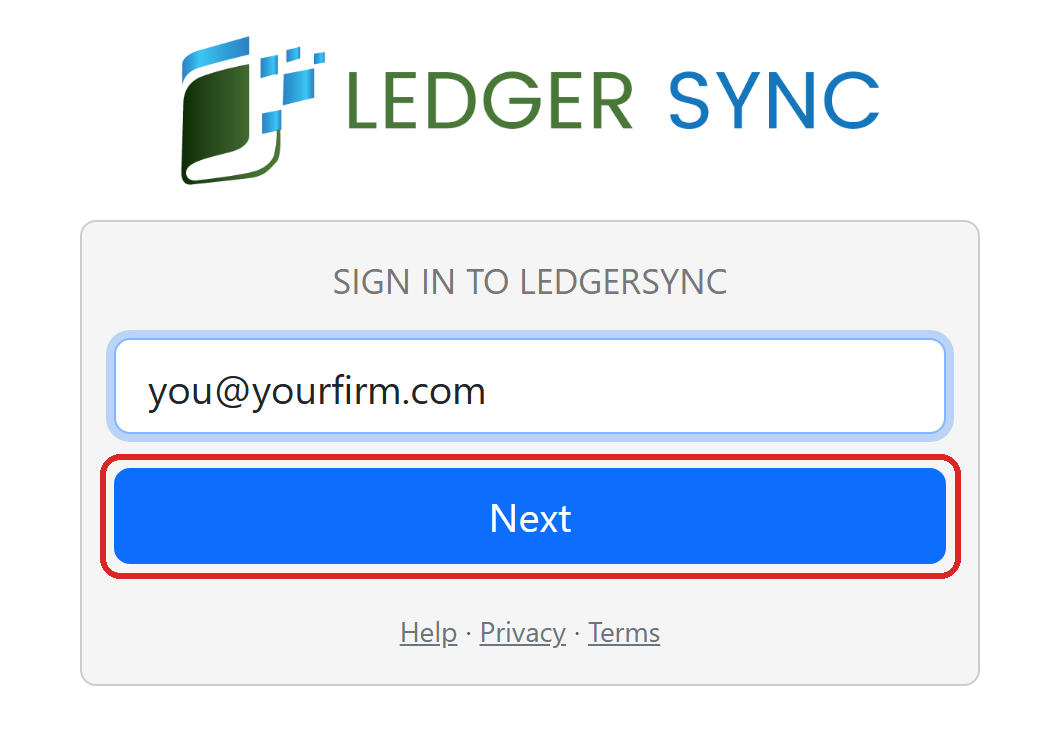
The LedgerSync sign-in page opens. Type your email or your LedgerSync username. Click **Next**.
Already signed in to LedgerSync in this browser? You go straight to the **Allow** page.
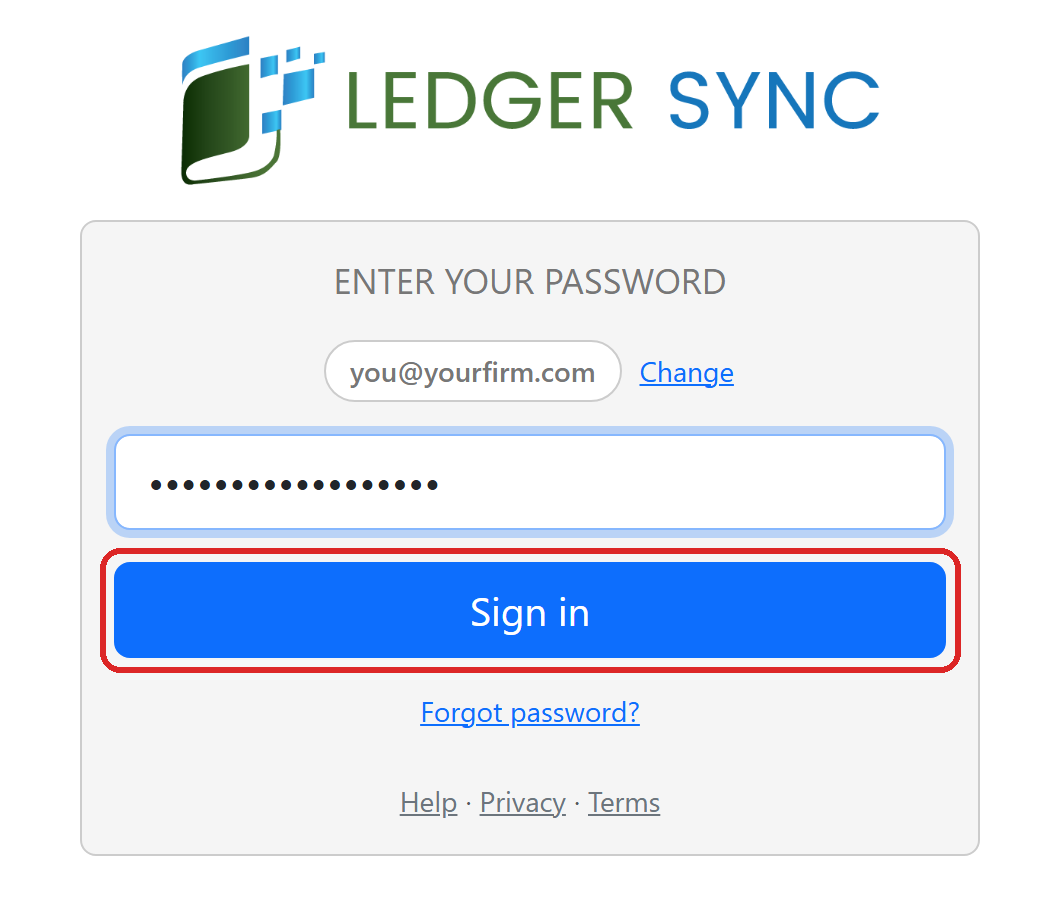
 Type your LedgerSync password. Click **Sign in**.
 See **Create your LedgerSync account**? Do not click it. Click **Change** and type your LedgerSync
username.
You use two-step sign-in? Type your code and click **Verify**. Forgot your password? Click
**Forgot password?**.
You see your firm's name and your name. Click **Allow**. Then your AI asks to access your account: click
**Allow access**. You only see that the first time.
Your clients are already there. Ask your first question.
Add LedgerSync to Claude.
Add LedgerSync to ChatGPT.
Stuck? Email [support@ledgersync.com](mailto:support@ledgersync.com) with the step and what the screen says.
Never send passwords or card numbers.
This documentation is built and hosted on [Mintlify](https://mintlify.com), a developer documentation platform.
See **Create your LedgerSync account**? Do not click it. Click **Change** and type your LedgerSync
username.
You use two-step sign-in? Type your code and click **Verify**. Forgot your password? Click
**Forgot password?**.
You see your firm's name and your name. Click **Allow**. Then your AI asks to access your account: click
**Allow access**. You only see that the first time.
Your clients are already there. Ask your first question.
Add LedgerSync to Claude.
Add LedgerSync to ChatGPT.
Stuck? Email [support@ledgersync.com](mailto:support@ledgersync.com) with the step and what the screen says.
Never send passwords or card numbers.
This documentation is built and hosted on [Mintlify](https://mintlify.com), a developer documentation platform.